 Purdue University Libraries, WALC 3007
Sticker Printing for Purdue Students
Free Purdue
Stickers, Minus the Prep
Purdue’s Knowledge Lab cuts vinyl stickers for free. This takes your idea to an approved submission without the four hours in Illustrator.
The printing is free. The file prep is what costs you.
The external problem
The Lab requires an Illustrator file with a cut path stroked in one specific magenta spot swatch, at 18 in wide, in CMYK, on its own layer, saved as a particular flavor of PDF. Most students don’t own Illustrator, so that means a trip to a campus lab machine.
The internal problem
You wanted a sticker, and instead you are reading a spec sheet about raster effect resolution. The rules are all findable and none of them are interesting, and it is never clear whether you got them right until the denial email arrives.
What's at stake
Four to six hours on the first attempt, or the far more common outcome: you read the guide, decide it isn’t worth it, and the free printer goes unused for another semester.
Idea to booked slot, in six moves.
The pipeline that produced four approved BuildPurdue designs in May 2026, two of them printed.
Intake and Rules
Text, logo, physical size, finish. Then the copyright check and the roll-length math, because that is where submissions get denied and where your monthly allotment gets used up.
Design the SVG
Built on a real physical-size skeleton at 300 units per inch, self-contained in one file. Six finished BuildPurdue designs and a neutral template ship with the skill as starting points.
Render at Size
A render script drives headless Chrome to an exact-size transparent PNG, 300 DPI stamped and verified non-blank. You see it and approve it before anything else happens.
Package the Files
A dated folder with final PNGs, source SVGs, and a notes file carrying size, finish, quantity, and the FirstName_LastName_Sticker name the Lab asks for.
Illustrator Prep
If a prepped PDF is needed, it walks the playbook step by step, including the traps from the real session: embed on place, lock the scaling chain, cut path on its own layer.
Book and Submit
Opens the Lab’s booking page, sizes the slot to your material length, and walks the request form. An email fallback with a ready-to-fill template is there if the form fights you.
What this is
A vinyl cutter in the library that anybody with a Purdue ID can use.
The Knowledge Lab sits on the third floor of WALC and runs a Roland printer-cutter. You bring a design, they print it on vinyl and cut it to your shape, and you walk out with real die-cut stickers. It costs nothing. Most students never hear about it, and the ones who do usually bounce off the file requirements.
Cost
$0
Free for students. No commercial use, no mass production.
How much
18 × 36 in
Of material per month, per person or per club. Roughly 162 two-inch stickers.
Finishes
3
Glossy, matte, transparent. A heat-transfer option shows up on the request form too.
Where
WALC 3007
The Knowledge Lab, inside Purdue Libraries. Booked slots only, no walk-ins.
Your allotment is measured in length, not stickers, because the operator tiles copies across the roll and prints whole rows. Move the sliders and see what your size actually buys.
Your sticker
Free every month
162
2 × 2 in stickers, at no charge.
The math
18 ÷ 2 = 9 per row
36 ÷ 2 = 18 rows
9 × 18 = 162 stickers
Book this long
30 minutes for 50 stickers.
6 rows × 2 in = 12 in of roll. The form asks for length, not count.
Roll is 18 in wide, 36in of length per month per person or club, materials free. Straight from the Lab's Start Here page.
Official details live in the Knowledge Lab guide, and slots are requested on the booking page. Everything below was verified against both in August 2026.
Why almost nobody does it
Free is not the same as easy.
Five things sit between a sticker idea and a sticker. None of them are hard on their own. Together they are an afternoon.
You have to use Adobe Illustrator
Not “we recommend.” The guide says file prep must be done in Illustrator. Most students do not have a Creative Cloud license, so the practical answer is a Purdue IT lab computer — the instructional lab list tells you which ones have it. In practice you walk to WALC, sit at a lab machine, and learn Illustrator well enough to do the job in one sitting.
The spec is unforgiving
Miss any one of these and the file comes back. The cut color is the one that catches everybody: the printer looks for a single named magenta spot swatch, and it lives in a file you download from a Google Drive link inside the guide.
| Item | What it has to be |
|---|---|
| Document | Illustrator file. Width 18 in (the printer default), height set by your design, color mode CMYK, raster effects High (300 ppi). |
| Cut path | A vector outline of every sticker, stroked with the magenta “CutContour” swatch out of the official Roland VersaWorks swatch library. The printer recognizes that one swatch and nothing else. |
| Cut path layer | Its own layer, above the artwork. Fill set to none. Stroke width 0.1 (the video never states a unit; it is points on default settings). |
| Scaling | Uniform only. The chain icon in the Transform panel stays locked, or your sticker prints stretched. |
| Artboard | Trimmed tight to the art. Shift+O and drag, or Window → Artboard → Fit to Selected Art. |
| Save format | Save As → Adobe PDF with “Preserve Illustrator Editing Capabilities” checked. The video says the High Quality PDF preset. Both have been accepted. |
| File name | FirstName_LastName_Sticker. Exactly that shape. |
Still with us?
Skip to the easy wayAnything that is not a rectangle gets a twelve-step dance
A square sticker is a rectangle drawn over the art. A shape that follows your artwork’s real edge, or a chunk of text with no box around it, means tracing a silhouette by hand:
- 01Duplicate the artwork
- 02Image Trace the copy on the Silhouettes preset
- 03Expand
- 04Ungroup
- 05Release
- 06Keep the outermost shape, delete everything else
- 07Shift+X to swap fill and stroke
- 08Duplicate the outline — one copy clips, one copy cuts
- 09Align the first outline over the art and Make Clipping Mask
- 10Offset Path the second outline (0.05–0.17 in) for a border
- 11Align it, stroke it with CutContour, move it to its own layer
- 12Resize both together, trim the artboard, save the PDF
No walk-ins, and the approval is a round trip
You request a print time and submit the design for approval in advance, in the same form. The slot has to be long enough for the material you are printing, and a denial comes back with a list of fixes — which means another Illustrator session and another submission.
Copyright is enforced, and Purdue’s own marks count
Original works only. Every Purdue trademark — the Unfinished P, the Boilermaker Special — needs permission from Purdue Trademarks and Licensing before it can go on a sticker, and files do get denied for infringement. The obvious first idea, a sticker with your club name and a Purdue logo on it, is the one that will not clear.
What it actually costs you
Four to six hours, the first time through.
Spread across designing something worth printing, the trip to a lab machine and the Illustrator session on it, and the booking round trip. That is my number, from doing it. It is why the free sticker printer at a university of 50,000 people is not busy.
Have you had enough?
Skip all the workWhat it produced
Six designs for BuildPurdue. Two of them are stuck to things.
Every one of these was designed through the pipeline and printed or approved at the Knowledge Lab. Two by two inches, glossy, black with a gold keyline, which is the finish that suits a dark design.


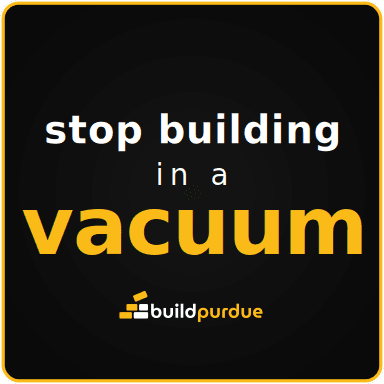
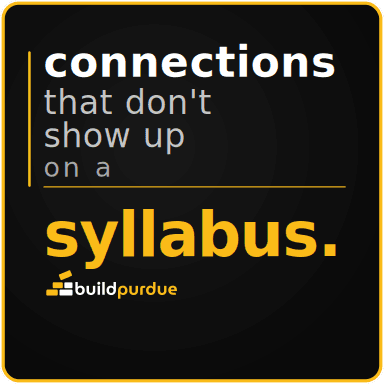
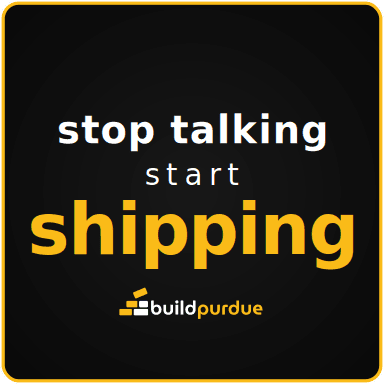

Designed with the skill’s pipeline, printed at the Purdue Knowledge Lab. Two were accepted from emailed PNGs with little or no editing; the rest cleared design approval.
No AI required
The short version, if you would rather just do it.
This is the whole official process condensed, with the parts that cost me time called out. It works. Set aside an afternoon for your first one and it will go faster after that.
Check your idea against the rules first
Original artwork only. Every Purdue trademark — the Unfinished P, the Boilermaker Special — needs permission from Purdue Trademarks and Licensing, and files get denied for infringement. No third-party logos. Nothing for sale.
Work out your material length
The roll is 18 in wide and the operator tiles copies across it, so length is the number of rows you use times the sticker height. Fifty 2 × 2 in stickers is nine across, six rows, 12 in of roll. Your monthly ceiling is 36 in. The calculator above does this for you.
Find an Illustrator machine
Adobe Illustrator is free on Purdue IT lab computers. The instructional lab list tells you which ones. WALC has them, which is convenient, since that is where you are printing.
Download the swatch library
Grab RolandVersaWorks.ai before you start. Window → Swatches → the library icon at the bottom left → Other Library → open that file. CutContour appears in your swatch panel.
Build the file
New file at 18 in wide, CMYK, raster effects High. Place your art with a single click, never a drag, and hit Embed immediately. Size it with the chain locked. Draw the cut path, stroke it CutContour with no fill, move it to its own layer, trim the artboard.
Save it the way they asked
Save As → Adobe PDF, keep “Preserve Illustrator Editing Capabilities” checked, name it FirstName_LastName_Sticker. Multiple designs can share one PDF as long as each is individually prepped.
Book a slot and submit
On the booking page, pick a green slot sized to your material length, upload the prepped PDF and the original image files, and choose your finish. Then wait for the approval email. A denial comes back with the fixes it needs.
Seriously, you don’t have to do any of this.
Let the skill do itThe slot you book is sized by the length of roll your job uses, not the number of stickers. The rule of thumb is 30 minutes per 12 inches.
| Material length | Slot to book |
|---|---|
| 12 in or less | 30 min |
| 12 to 24 in | 60 min |
| 24 to 36 in | 90 min |
- Total material inside the 18 × 36 in monthly allotment. A club counts as one person, and splitting submissions across members to get more is what loses a group its privileges.
- Original artwork, no Purdue trademarks without a license, no third-party logos.
- Not for sale, not mass production.
- Each design individually prepped if several share one PDF, and the file named FirstName_LastName_Sticker.
- Upload the prepped PDF and the original image files, both.
The official LibGuide. Every rule on this page traces back to it.
Where the 18 × 36 in allotment and the booking durations are stated.
LibCal. Where you request a slot and submit the design for approval.
Which lab computers have Adobe Illustrator on them.
The .ai file the CutContour swatch lives in.
WALC 3007. knowledgelab@purdue.edu, 765-496-1883.
The Lab changes its form and its guide from time to time. If anything here does not match what you see, the official guide wins.
The official guide, distilled and actually used.
Purdue’s sticker LibGuide is spread across seven pages, a video, and a Google Drive download. It is archived here in full, reduced to the rules that decide whether a file gets approved, and paired with the design system and the notes from a real print session.
Reference
Official Requirements
Hard rules
- No walk-ins. A print time must be requested AND the design submitted for approval in advance: https://calendar.lib.purdue.edu/space/182313
- Material roll is 18 in wide. Monthly max is 36 in of roll length, so the monthly allotment is 18x36 in per individual OR per club/org (a club counts as 1 person; members may not split submissions to get more, penalty is loss of privileges).
- Free, but no commercial use and no mass production.
- Original works only (copyright). All Purdue trademarks (Unfinished P, Boilermaker train, etc.) need permission from Purdue Trademarks and Licensing. Files get denied for infringement. Questions: Knowledge Lab manager Patricia Swanson, paswanso@purdue.edu.
- File prep must be done in Adobe Illustrator (available free in Purdue IT labs; list at https://it.purdue.edu/facilities/instructionallabs/index.php).
File spec (what the submitted file must contain)
| Item | Requirement |
|---|---|
| Document | Illustrator doc, Width 18 in (printer default), Height = design height, Color Mode CMYK, Raster Effects High (300 ppi) |
| Cut path | Vector outline of each sticker, stroked with the magenta "CutContour" swatch from the official Roland VersaWorks.ai swatch library. The printer recognizes ONLY this swatch as a cut line |
| Cut path stroke width | "0.1" per the official video, which never states a unit — Illustrator's stroke unit (Preferences > Units > Stroke) is points by default and independent of document inches, so read it as 0.1 pt. The printer keys off the CutContour swatch, not the width, so this is not load-bearing |
| Cut path layer | On its own separate layer, above the artwork layer |
| Fill of cut path | None |
| Scaling | Uniform only (chain/link icon locked in Transform panel) |
| Artboard | Trimmed tight to the art (Artboard tool Shift+O, or Window > Artboard > preset "Fit to Selected Art") |
| Offset path | Optional border, recommended for irregular/text edges; guide shows 0.05-0.17 in examples |
| Save format | Written guide: Save As > Adobe PDF with "Preserve Illustrator Editing Capabilities" checked. Video: "High Quality PDF" preset. Either PDF flavor has been accepted |
| File name | FirstName_LastName_Sticker (e.g. Jane_Doe_Sticker) |
| Multiple designs | Allowed in ONE PDF if each sticker is individually prepped; they recommend limiting how many at once. One copy per design is enough — the print operator duplicates in software |
- Roland VersaWorks.ai swatch library (also saved at
../assets/RolandVersaWorks.ai): https://drive.google.com/file/d/1_BBz8jbD3d8bdIdvzorU0P5Ob2wI5YSI/view?usp=sharing - When submitting the booking form, upload BOTH the prepped PDF and the original image files (per the video).
Booking time to request
- <= 12 in of material: 30 min
- 12-24 in: 60 min
- 24-36 in: 90 min
(Rule of thumb from the video: 30 min per 12 in.)
Materials / finishes (chosen on the request form)
- Glossy (shiny) — best for bold dark designs, what Elliot used
- Matte (flat)
- Transparent (clear, some shine)
- Heat Transfer (fabric) — appears on the form though not on the materials page
Visual references (archived in `guide-images/`, indexed in its INDEX.md)
- Offset-path width examples 0 to 0.17 in:
1_Offset.jpg…6_Offset.jpg— show these when choosing a border width - Shape categories:
Circle.png(geometric),Irregular.png,Irregular-text.png - Size frame of reference (1-3 in):
StickerSizes-outlined.png - Finishes:
Glossy.png,Matte.png,Transparent.png— show these when choosing a material
Sticker shape categories
- Geometric (circle/rectangle): simplest prep — draw a Rectangle/Ellipse cut path over the art. Video transcript:
raw-guide-text/geometric-shapes-video-transcript.txt - Irregular (detailed edges) and Text: full Image Trace silhouette workflow (see
illustrator-playbook.md)
Contacts
- Knowledge Lab: knowledgelab@purdue.edu, WALC 3007, 765-496-1883, https://lib.purdue.edu/knowledgelab/
- Manager: Patricia Swanson (she/her), paswanso@purdue.edu
Use it now. It's free.
Works on all platforms. Pick yours and get set up in under a minute.
Download & upload in 60 seconds
One click downloads the zip and opens Claude.ai.
Click below — the zip downloads and Claude.ai opens.
Click the + button in the skills column on the left.
Select Create a skill.
Select Upload a skill and upload the zip.
Start your sticker run by running /estack-purdue-stickers.
Purdue Knowledge Lab Stickers ships in E-Stack, a set of 21 free skills installed by one command. See the whole stack.